
You will receive an email notification for each new editor assignment. To access your assignments, log into your Editorial Manager account as an Editor and, from the Main Menu, click the “New Assignments” link in the “Editor ‘To-Do’ List”.
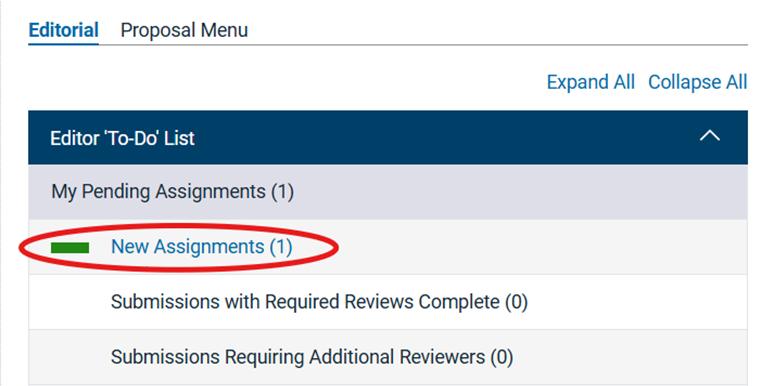
- NOTE: The bars next to the folders in the editor Main Menu, as well as next to the individual submissions in the folders, change color depending on how long a submission has been waiting in that queue without any action taken. Please take action on manuscripts while they are still Green. Orange indicates that a submission has been waiting for longer than is ideal (>48 hours). Red indicates a late assignment (>72 hours).
From the New Assignments queue, you will perform all required actions for newly submitted manuscripts, both original submissions and revisions. You have full access to the manuscript Details and History (both submission history and correspondence), classifications, past reviews and decision letters for revised manuscripts, and all manuscript files. The “Action Links” on all manuscripts are described in further detail below.
After your initial evaluation of the manuscript, if you believe it warrants peer review:
If you are a Senior Editor, the next action will be deciding whether to manage the peer review process yourself or whether the manuscript should be assigned to an Associate Editor for handling, or first assigned to a Statistics and Methodology Editor. If you choose to assign another Editor, see Assigning Sub-Editor or Stats/Methods Editor. If you choose to manage the manuscript yourself, see Inviting Reviewers.
If you are an Associate or Consulting Editor, the next action will be reviewer selection and invitation. This process will vary, depending on whether the manuscript is newly submitted or a revision. Revised submissions are identified by the letter “R” at the end of the manuscript number. E.g., JBJS-D-25-01577 is a new submission while JBJS-D-25-01577R1 is a first revision. See Inviting Reviewers.
Basic Manuscript Requirements
- Institutional Review Board (IRB) approval (for clinical manuscripts) or informed consent (for case reports) is required. This can either be incorporated into the text of the manuscripts, or the authors can submit separate documents (this is common for IRB approval; note, however, that we strongly discourage authors from providing consent forms that identify any patients). It is the Senior Editor’s responsibility to determine the validity of IRB approval or informed consent.
- Reports of randomized controlled trials where patient enrollment began after December 2016 must have been registered prospectively to be considered for publication. This policy was made effective in January 2018 per the editorial found here. The Editorial staff will alert the Senior Editor if a paper appears not to meet these guidelines. The Senior Editor will then determine how to proceed.
- Additional requirements for authors can be found in the Author Resource Center. If you suspect that a manuscript does not adhere to JBJS policy, please contact the Editorial Office.
Manuscript Action Links
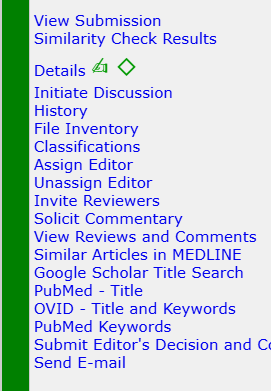
View Submission: Downloads the system-generated manuscript PDF. This PDF includes some of the submission metadata (“Details” page) and files uploaded by the authors and/or staff.
Similarity Check Results: The system automatically runs this report on all submitted manuscripts to check for plagiarism and duplicate publication. This is monitored by staff and is not the responsibility of the Editors. If our staff has identified a problem based on the Similarity Check results, they will bring it to the attention of the Editors.
Details: Shows the full submission metadata, including author list, classifications and keywords, payment status, abstract, and questionnaire responses. Editorial and Production staff will often leave notes in the Manuscript Notes and Production Notes fields. You are welcome to leave notes for staff here as well.
Next to the Details link you will see a manuscript’s Submission Flags. Hover your mouse over any flag to see what it means.
Initiate Discussion: Opens a discussion forum. See Using the Discussion Feature.
History: Contains the full correspondence history for the submission. Emails sent through Editorial Manager are uploaded automatically; staff occasionally uploads external correspondence as well.
File Inventory: Contains a list of each of the files uploaded to the submission, as well as a place (Companion Files) for staff or editors to upload miscellaneous files.
Classifications: View and/or edit the classifications selected for the manuscript. Editing these can be helpful for the reviewer selection process, as authors often leave out important classifications.
Assign Editor: See Assigning Sub-Editors or Stats/Methods Editors.
Unassign Editor: Opens a menu to unassign an editor if they were assigned to the manuscript in error, or if they have a conflict of interest. You may simply remove them from the assignment, or replace them with a different editor with the same role.
Invite Reviewers: See Inviting Reviewers.
Solicit Commentary: Staff uses this to invite commentaries on accepted articles. Editors may ignore this link.
View Reviews and Comments: Once at least one review or editor recommendation has been submitted, this link will appear. You may view all editor and reviewer comments from this window, for each manuscript version.
Similar Articles in MEDLINE, Google Scholar Title Search, PubMed – Title, OVID – Title and Keywords, and PubMed Keywords: All open a new window to perform a search based on the stated criteria in the respective platform.
Submit Editor’s Decision and Comments: See Submitting a Decision.
Send E-mail: Choose from a selection of templates to send an email to reviewers, authors, staff, or other editors. This is preferable to sending an email outside of Editorial Manager because any email sent using this feature automatically becomes part of the permanent manuscript correspondence record in History.