
This page outlines step-by-step instructions for inviting reviewers in Editorial Manager. For more tips, see Best Practices.
New Submissions
When authors submit a manuscript, they select classifications that categorize their paper. These classifications play an important role in identifying potential reviewers in the system. Editors can modify classifications from the Action Links and should add/remove terms from submissions as they see fit.
Identifying and Inviting Potential Reviewers
Click on the Invite Reviewers link in the Action menu:
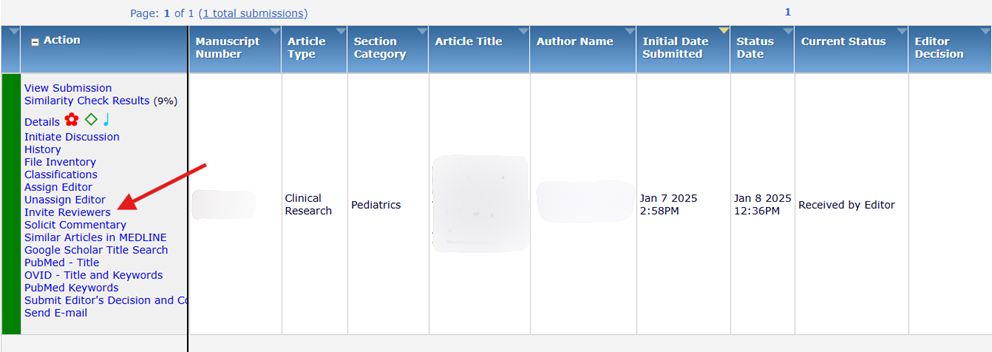
This will bring you to the Invite Reviewers Menu.
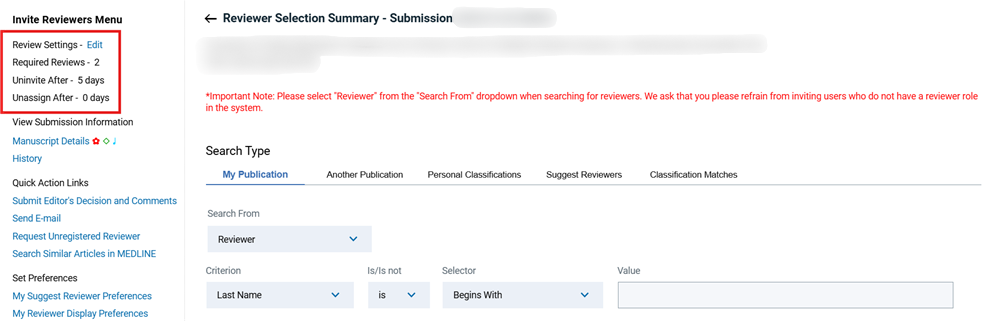
Required Number of Reviews
In most cases, each manuscript should have at least 2 reviewers invited and usually 2 alternates designated. Alternates are automatically promoted by the system to Invited if a previously invited reviewer declines or does not respond.
Non-scientific manuscripts (Viewpoints, for example), may not need 2 reviewers; some complex manuscripts may need more than 2. Editors should use their discretion when choosing how many reviewers to invite. However, we strongly advise against inviting more than 3 at the same time; if more opinions are needed after 2 or 3 reviews have been completed, the Editor should invite another reviewer at that time.
The default number of reviews that must be received before the submission moves to the Required Reviews Complete folder is 2. If you invite more or less than 2 reviewers, it is important to change this number using the “Edit” link (shown above in the red box) so that you will be properly notified when all reviews are completed.
Once the required numbers of reviews have been completed, the submission will move to your “Submissions with Required Reviews Complete” folder and you will receive an email notification.
NOTE: The other options available in the Invite Reviewers Menu box are set by default and should not be adjusted.
Search for Reviewers
There are several ways to identify potential reviewers:
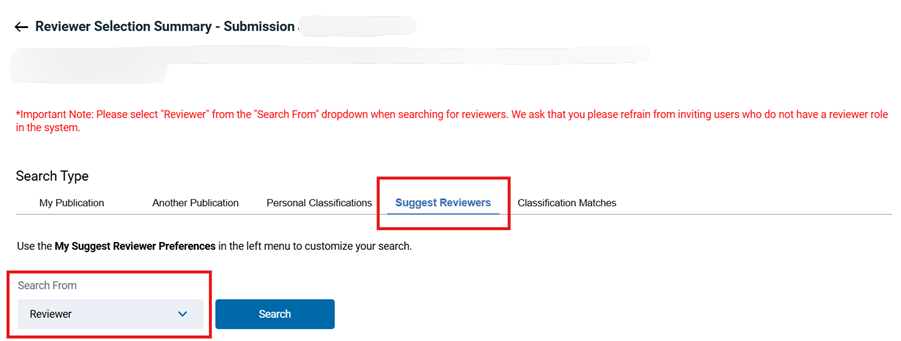
Suggest Reviewers (recommended): This option searches according to your preset “Suggest Reviewer” preferences, accessible in the left-hand sidebar. These preferences have been configured by the Editorial Office. As they have already been optimized to give you the best results, we recommend against adjusting them further.
Search by Classification Matches: Use this option to search only by classification matches.
Search by Personal Classifications: Search for reviewers that have specific classifications.
Search for Reviewers (“My Publication”): Use this option to search for a specific person (e.g., by last name or email address). This will search the entire system database (including authors); use this option if you have a person in mind but are not sure whether they are a registered reviewer.
Select the Search Type (e.g. Suggest Reviewers) and Select “Reviewers” from the “Search From” dropdown. Click Search.
Important: The “Search From” dropdown always defaults to “Entire Database,” which will pull in anyone registered in the system, including authors. Many of these individuals are not reviewers. This can make the search results difficult to navigate. It is crucial that you select “Reviewer” every time. Note that this is different from “All Reviewers,” which also includes CME reviewers (who should not typically be invited to a standard full manuscript review).
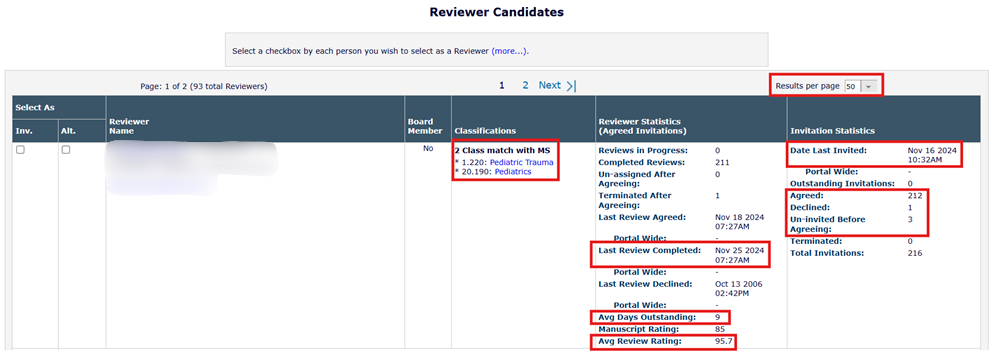
The search results appear as a list with the best-matched reviewers at the top. The following information is included in the search results:
Reviewer Name and Flags: Clicking on the person’s name will open their People Information page, which shows additional details, including contact information, availability, and previous reviewer and author activity. Any flags associated with the reviewer’s profile will appear to the right of their name. Hover over any flag to see what it indicates.
Classifications: Shows any classification matches the person has with the manuscript.
Reviewer Statistics: Includes how many reviews the individual has presently in progress and completed; how many times the person was un-invited before agreeing to review or terminated after agreement; dates of last reviews completed, agreed to, or declined; average number of days a review is outstanding; and average reviewer rating (as determined by the Editor).
Invitation Statistics: Reviewer’s overall performance record. Includes the number of presently outstanding invitations, accepted/declined invitations, un-invited reviews, terminated reviews, and the total number of invitations received.
Tip: If you experience slowness, changing the number of results per page from 10 to 50 can help alleviate time spent waiting for pages to load. This only needs to be done once and will be saved for subsequent searches.
Select Reviewers
When deciding which reviewers to invite, we recommend looking at: classification matches; frequency of declined or un-invited invitations; and date last invited or completed.
Classification matches indicate how well-suited the reviewer may be to review this manuscript based on their selected areas of expertise. The default for inclusion is at least 2 matches. High decline/un-invited rates indicate an unreliable reviewer. Reviewers who have received an invitation or completed a review within the last couple of weeks should not be invited again until more time has passed, to avoid overburdening them.
Average days outstanding and average review rating can be helpful metrics for anticipating a reviewer’s performance.
Red text will appear under the Reviewer Name column when a reviewer has been selected as an alternate or proposed reviewer for another submission. In general, it is good practice to avoid selecting these individuals when possible. If a reviewer has entered Unavailable Dates, their Unavailable Dates will also appear here as a blue link; these reviewers should not be invited during the time period indicated.
If the red text states that the individual is not a reviewer in the system, please do not invite them. See Top 5 Best Practices (Maintaining the Reviewer Database) for more information.

There are two options available when selecting reviewers, as shown below: ‘Inv.’ (Invite) , ‘Alt.’ (Alternate).
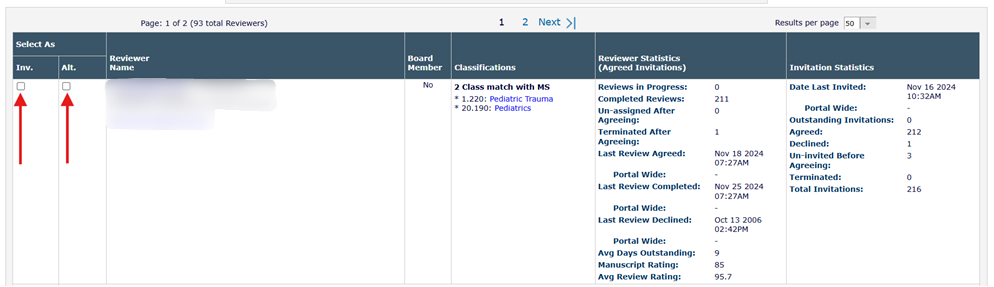
Check the ‘Inv.’ box for each reviewer whom you would like to invite now.
Check the ‘Alt.’ box to select a person as an alternate reviewer, who will be invited only if one of the invited reviewers declines or is un-invited.
Once you have selected your reviewers and alternates, scroll to the bottom of the page and click Proceed.
On the next screen, you can select via drop-down menu the invitation letter that you would like to send to each reviewer. You also have the option to customize each letter.
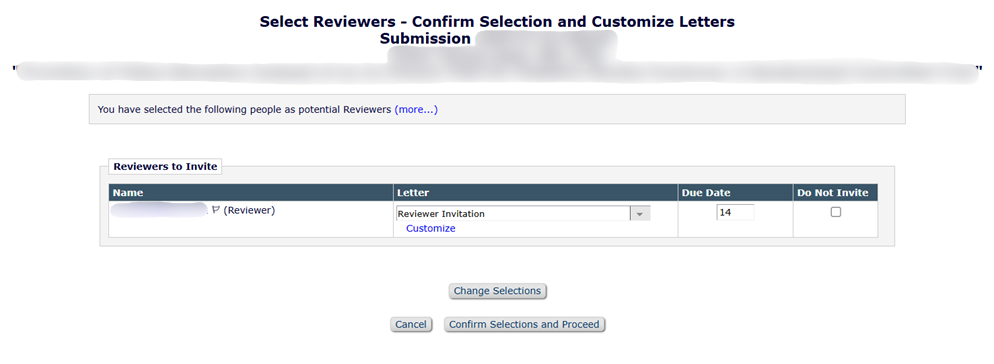
There are multiple letter templates available via the drop-down menu. (To preview the letter text, click the “Customize” link.) For new submissions, you will use the default “Reviewer Invitation” letter. To customize any invitation letter, simply click on the Customize link.
When you’re ready to invite the Reviewers, click on Confirm Selections and Proceed. Invitation letters will then be sent to the reviewers you chose to invite. Alternate reviewers will not receive invitation letters unless the invited reviewers decline or are un-invited. Until at least one reviewer responds to the invitation, the submission will remain in the Reviewers Invited – No Response folder.
You will receive an email notification when reviewers accept or decline. You will also receive an email when all reviews are complete. Reviewers are given 14 days to review a new submission. The Due Date is set by the system and should not be altered unless the manuscript has special circumstances (for example, if an invited submission for a theme issue needs to be turned around quickly).
If all the invited reviewers and the alternate reviewers selected for a submission either decline the invitation or are uninvited before the required number of reviews have been submitted, the submission will automatically move to your Submissions Requiring Additional Reviewers folder.
When all of the required reviews have been received, the submission will move to the Required Reviews Complete folder.
You may return to the Invite Reviewers screen at any time to invite additional reviewers, promote alternates (i.e., invite them), or change the order in which alternate reviewers will be invited.
Tips:
- Remember to adjust the number of required reviews to reflect the number of reviewers that you actually invited.
- The Editorial staff sends reminders to reviewers both automatically through the system and manually on a weekly basis and will notify you via email if they feel it necessary for you to contact the reviewer directly. They will also ask your approval before uninviting a reviewer who has not responded to our queries.
Revised Submissions
After revision, you may either send a manuscript out for re-review (often standard at first revision) to allow the previous reviewers to determine whether the authors have addressed their concerns, or you may choose to make that determination yourself. New reviewers can also be invited at this point if additional opinions are needed. A manuscript typically goes through 1-2 revisions before it is ready to be accepted.
Inviting Reviewers for Revised Manuscripts
From the Action Menu in Editorial Manager, select “Invite Reviewers”
To re-invite a previous reviewer, navigate to the Previous Reviewers tab and click the button under the table with their names.
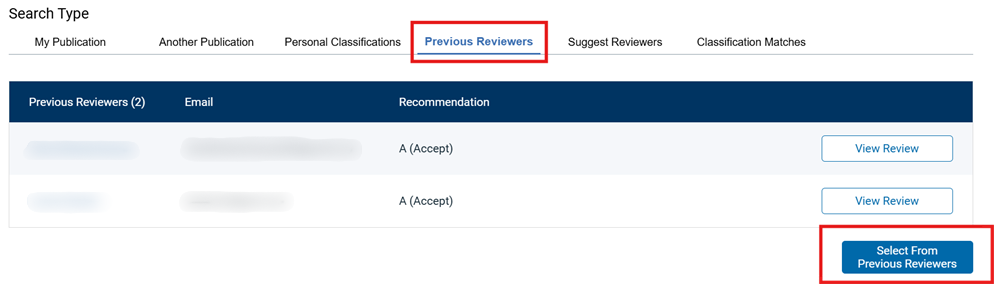
This will bring you to the standard search results page; however, only the previous reviewers will be included. Check the “Inv” box next to the reviewer(s) you wish to invite and click Proceed.
If you would like to invite new reviewers, you may search using one of the other tabs (e.g., Suggest Reviewers or Classification Matches).
Choose the Reviewer Invitation- Re-review revised manuscript template from the drop-down menu to ensure the reviewer understands that the submission has been revised and that he/she reviewed the previous version. You will need to customize this letter to fill in placeholders before sending.
When you’re ready to invite these reviewers, click on Confirm Selections and Proceed. Invitation letters will then be sent to the reviewers you chose to invite. Reviewers have 10 days to review revised manuscripts. As with original invitations, you will receive an email notification when reviewers accept or decline, and when all reviews are complete.