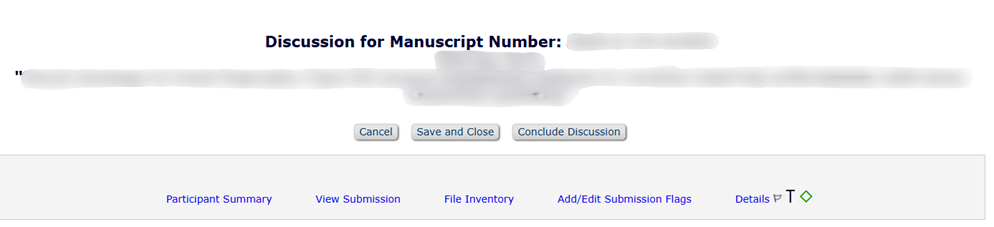
The Discussion feature can be used for communicating with other JBJS Editors. This may be useful for adjudicating disparate reviews (previously done at virtual Workshops), or getting a quick opinion without having to wait for another reviewer to submit comments.
Initiating Discussions
To open a Discussion, click the “Initiate Discussion” Action Link on the submission:

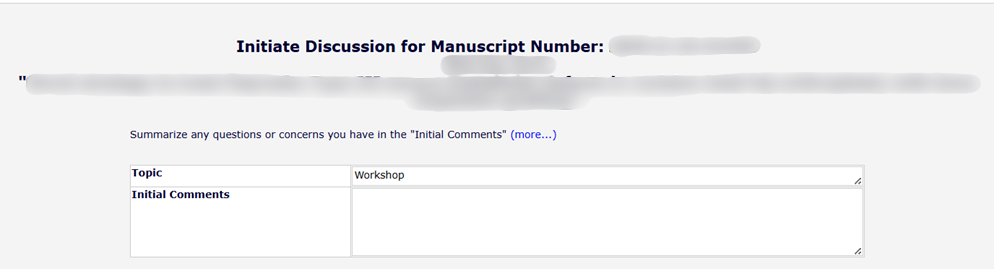
Enter a summary of your concerns or the disparate reviews and any specific questions you may have for the Discussion participants in the Initial Comments box.
Scroll down to the list of Editor Candidates. Sort the list by Current Assignments (descending) to view active Editors. This will filter any office staff to the bottom of the list.

Select the checkboxes next to the names of the Editors you would like to participate, then scroll to the bottom of the page and select “Proceed to Customize Letters.” The default letter includes the Initial Comments you entered above, and instructions for the participant to access the Discussion forum. If you have any additional information you’d like to add, you can do so by customizing each letter.
You may invite any members of the Editorial Board to contribute, but we recommend focusing on Editors within your own subspecialty area, or a related one.
Click Confirm Selections and Proceed to send the invitations and open the Discussion. The system will also give you the option to add a flag to the submission; you may choose to add the “Discussion Underway” flag.
Viewing and Posting Comments
When you are a participant in an active discussion, the Submissions with Active Discussions folder will appear in the Editor To-Do List section of your Editor Main Menu. A blue icon will appear next to this folder anytime there are new comments to view. All participants will also receive an email notification when new comments are posted.

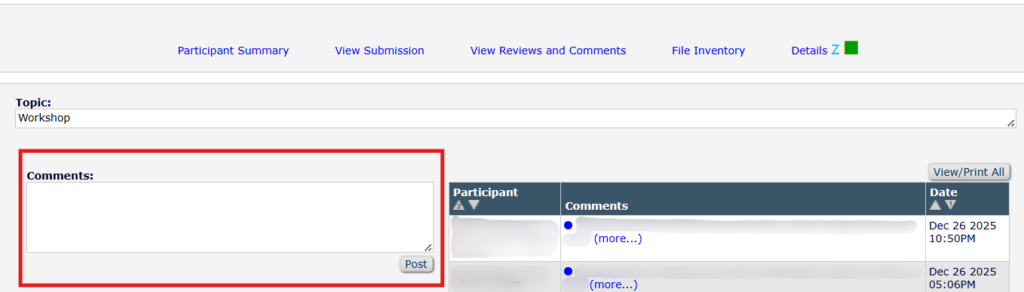
From this folder, click on the Workshop link to go directly to the discussion comments. You can also get to the same place by clicking on Discussions, and then View.

Enter your response into the Comments box, and then click Post. This will send an automatic email notification to all discussion participants. Because this email does not include the commenter’s name, we recommend signing each comment you post, so each editor can see from the email who posted the comment.
Closing Discussions
When the handling editor has received all the necessary feedback, close the Discussion by clicking “Conclude Discussion” on the View screen. Turn off the Discussion flag if you turned it on earlier. Proceed with submitting a decision as normal.